Getting started
How to start a game of Starward Empires, what you begin with, what every action button does, and what to do in your first few turns.
Starting a game
The title screen has five buttons:
| Button | What it does |
|---|---|
| Continue | Loads your most recent save straight away. Only shown once you have a save. |
| New Game | Starts a new game immediately. |
| Load | Opens the list of saved games. Disabled until you have a save. |
| Options | Disabled in this build. |
| Quit | Closes the game. |
There is no setup screen yet. New Game goes to a loading screen and deals you a fresh galaxy: 30 star systems and up to four empires, including yours. Your species, government, flag, colour and home world are chosen for you.
Saving and loading
- The game autosaves at the end of every turn and keeps the three most recent autosaves.
- To save by hand, open the menu (the ☰ button) and choose Save. Saves are not named by you - each takes the name of your home system.
- In the Load Game list, tap a row to load it. Press and hold a row to delete it. Autosaves are marked with a ⟳ symbol.
- You cannot save while a turn is being played out.
What you start with
You begin on turn 1 knowing only your home system.
Your homeworld
One colony, with the role Homeworld and a population of 1 million. It has six facilities already built:
- Shipyard I
- Minerals Mine I
- Radioactives Extractor I
- Organics Farm I
- Supply Depot
- Space Port
Your homeworld sets two things about your empire: the kind of surface you can settle (rock, ice or gas) and the atmosphere your people can breathe.
Your ships
Two ships, parked beside your homeworld:
- A Colony Ship, already carrying 1 million settlers.
- An Escort, a small armed warship.
Your resources
There are three resources: Minerals, Radioactives and Organics. You start with 5,000 minerals and 5,000 radioactives in the bank. Minerals and radioactives pay for facilities and ships. Organics feed your population.
Your research
A handful of research areas start at level 1, including Ship Construction, Propulsion, Cargo, the three extraction areas and the colonisation area for your home surface type. Everything else starts at level 0. Nothing is being researched until you choose a project - see Fund research.
Your ship designs
None. You have two ships but no designs of your own, so your shipyard has nothing to build until you draw one up - see Design a ship.
The screen
The layout adapts to the shape of the screen. On a phone held upright, the map fills the middle with everything else above and below it. On a tablet or desktop, the map sits on the left with a panel on the right.
| Part | What it is |
|---|---|
| Resource header | Your flag and empire name, then Minerals, Radioactives and Organics, each with an arrow showing whether it is rising or falling. Tap it to open the Economy report. |
| Map | Two tabs, System and Galaxy. |
| Inspector | Details of whatever you have selected. On a phone it is a sheet at the bottom - tap or drag the handle marked More to expand it, and Less to shrink it. |
| Action buttons | The row of buttons for the thing you have selected. Hidden when nothing is selected. |
| Turn buttons | Empire, Turn report, End Turn and the menu. |
System view
One star system on a fixed grid. It does not pan or zoom.
- Tap or click something to select it. Tap it again to deselect.
- Tap empty space to select the system itself.
- If a square holds more than one thing, tapping it opens a list to pick from. A small number in the corner of a square shows how many things are there.
- The selected square has a red outline.
- Warp points are labelled with the name of the system they lead to, or a question mark if you have not been there.
Worlds carry a small mark telling you whether you can settle them:
| Mark | Meaning |
|---|---|
| Green star | You can colonise it, and your people can breathe the air. |
| Red star | You can colonise it, but only under a dome. |
| No mark | You cannot colonise it yet. |
| Three small bars | Already settled. The colour is the owner's, and the bars show how full the colony is. |
Galaxy view
The systems you have discovered, as dots joined by lines. A short stub of a line points towards a neighbouring system you have not found yet.
- Tap or click a dot to open that system in the System tab.
- Drag to pan. Pinch, or use the mouse wheel, to zoom.
- A dot is blue if no empire is present, and takes an empire's colour if one is. A white ring marks the system you are currently viewing.
- With a mouse, hovering over a dot shows the system's name.
The inspector
- Your own colony has two tabs. Info shows owner, population, capacity, mood and production, plus anything being built. Facilities shows the colony's facility slots - tap one to read about it.
- Your own ship or fleet has tabs for Overview, Components and Strategy, plus Members for a fleet. Overview shows its current order.
- A rival's ship shows only its class. You can select and inspect rival ships and colonies, but not give them orders.
Action buttons
Most action buttons are icons without text. With a mouse, hover over one to see its name. On a touch screen there is no hover, so use the tables below.
A button that is greyed out cannot be used right now. With a mouse, hovering over it gives the reason.
Turn buttons
These are always on screen.
| Button | What it does |
|---|---|
 Empire | Opens a menu of six screens: Ship Designs, Research, Combat Doctrines, Economy, Known Worlds and Colonies. |
 Turn report | Opens the report of what happened last turn. The icon is bright when there is something unread. |
| End Turn | Ends your turn. The button shows the current turn number. See Ending a turn. |
| Menu | Opens the menu: Resume, Save, Load, Options (disabled) and Exit to Menu. |
With one of your ships or fleets selected
| Button | When you see it | What it does |
|---|---|---|
 Move | Any ship or fleet. | Asks for a destination. The squares you can reach this turn are shaded, but you can pick any square - a longer journey carries on over the following turns. |
 Warp | Any ship or fleet. | Asks for a warp point. The ship travels to it and crosses to the system on the far side. |
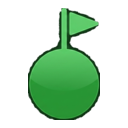 Colonise | Only a ship carrying a colony module. | Asks for a world. The ship travels there and founds a colony. |
 Attack | Only a ship with weapons. | Asks for a target: a rival ship, or a rival colony to bombard. The ship moves onto the target's square and fights. |
 Fleets | When two or more of your ships share a square, or a fleet is selected. | Opens the Fleets screen, where you create, rename and disband fleets and move ships between them. |
 Explore | Any ship or fleet. | Sends it to the nearest unexplored warp point, and keeps it exploring turn after turn until nothing is left to find. |
 Resupply | Greyed out if the tank is full or no supply depot is in reach. | Opens two choices - see Resupply and Repair. |
 Repair | Greyed out if the ship is undamaged or no shipyard is in reach. | Opens two choices - see Resupply and Repair. |
 Overhaul | Single ships only. Greyed out unless the ship is on the square of one of your shipyard worlds. | Opens the Yard screen: Scrap, Mothball or Retrofit the ship. |
 Deselect | Always. | Clears the selection. |
Space stations and other bases cannot move, so they have no Move, Warp, Explore or Fleets buttons.
Choosing a target
Move, Warp, Colonise and Attack all need a target. When you press one, the row of buttons is replaced by a prompt - for example "Select destination" - and a Cancel button. Valid targets pulse on the map. Tap one to give the order, or press Cancel to back out. A tap on something that is not a valid target does nothing.
You can switch to the Galaxy tab and open another system while the prompt is showing. That is how you send a ship to a square or a world in a different system.
If you choose Move and tap a square with a rival ship on it, the game asks whether you want to attack there instead.
Orders are carried out straight away as far as the ship's movement for this turn allows. Whatever is left is carried out when you end the turn.
Resupply and Repair
Each of these opens a pair of icon buttons with no text.
| Button | What it does |
|---|---|
| Resupply | Go to your nearest supply depot and stay there. |
 Resupply and return | Go to your nearest supply depot, then come back to where the ship is now. |
| Repair | Go to your nearest shipyard and stay there. |
 Repair and return | Go to your nearest shipyard, then come back once the ship is mended. |
A ship is resupplied the moment it arrives on the square of a world with a Supply Depot, so one sent to resupply and return carries on home with a full tank. A ship that is already sitting on a depot world's square is topped up at the end of the turn. Repairs happen at the end of each turn the ship spends on the square of a shipyard world.
With one of your colonies selected
| Button | What it does |
|---|---|
 Build | Opens the Construction screen, where you queue facilities and ships. |
| Convert | Swaps one resource for another. Greyed out until the colony has a Resource Converter, which needs research first. This button shows the word, not an icon. |
| Deselect | Clears the selection. |
With a warp point selected
| Button | What it does |
|---|---|
 View System | Switches the map to the system on the far side. Nothing moves. Not shown if you have not discovered that system. |
| Deselect | Clears the selection. |
Anything else you select - a star, an unsettled world, a rival's ship - has only Deselect.
Ending a turn
If any of your ships still has an order to carry out, the first press of End Turn plays out those moves and then hands control back to you. Press End Turn again to finish the turn. If no ship has anything left to do, one press is enough.
When the turn ends:
- Each rival empire takes its turn. You see the moves of any ships you can observe.
- Every empire collects income, feeds its population and makes progress on whatever it is building.
- Colonies grow.
- Research advances.
- Ships parked at shipyards are repaired, and any ship parked on a depot world's square is topped up.
- The turn number goes up, every ship gets its movement back, and the game autosaves.
Combat is not a separate step. A fight happens the moment a ship arrives on a square with an enemy on it.
If anything noteworthy happened, the turn report opens at the start of your next turn. Tap an entry to read it. Show takes you to whatever the entry is about, Clear removes the entry, and Continue closes the report.
Your first turns
Explore with your Escort
Select the Escort and press Explore. It heads for the nearest unexplored warp point and keeps going on later turns. Entering a system for the first time adds it to your Galaxy view.
Found a second colony
- Select the Colony Ship and press Colonise.
- Worlds you can settle pulse on the map. To begin with these are unclaimed planets and moons with the same surface type as your homeworld. A green star means a normal colony, a red star means a domed one.
- Tap a world. If there are none in your home system, explore first, then open the other system from the Galaxy tab while the prompt is still showing.
- When the ship arrives it founds the colony and you are asked to choose a role for it. The role is a label for your own reference - it does not change what the colony can build, and you cannot change it afterwards.
A new colony starts with the 1 million settlers the ship carried and no facilities. It produces nothing until you build some.
Queue a facility
Select your homeworld and press Build. The Construction screen lists what you can build on the left and what is in progress on the right. Tap a row to add it to the queue. Each row shows its price and an estimate of how long it will take.
What you can build on turn 1:
| Facility | Minerals | Radioactives |
|---|---|---|
| Minerals Mine I | 1,000 | 500 |
| Radioactives Extractor I | 1,000 | 500 |
| Organics Farm I | 1,000 | 500 |
| Supply Depot | 1,500 | 750 |
| Research Lab I | 2,000 | 1,000 |
| Space Port | 4,000 | 2,000 |
| Minerals, Radioactives or Organics Storage I | 2,000 | 0 |
- You do not pay up front. The cost is drawn from your resources turn by turn as the work is done.
- A colony builds one facility at a time. Ships are built separately, so a shipyard can work on a ship while the colony works on a facility.
- Each world has a limited number of facility slots, set by its size. A domed colony has far fewer. Something in the queue already holds its slot.
- Cancelling a build refunds what has been paid so far.
- A world can only have one shipyard.
Every facility is listed in the facilities reference.
Fund research
Open Empire, then Research. Your homeworld produces 500 research points a turn, and each Research Lab adds more.
- Tap an area in the list to start a project. Tap a current project to cancel it - its progress is kept.
- Reaching a level costs 2,500 points times the level. Level 1 of a new area is 2,500 points, level 2 is 5,000, and so on.
- Unless you tick Divide Pts Evenly, all your points go to the first project in the list.
- Areas whose prerequisites you have not met are hidden, not greyed out.
The research screen does not yet show what each level unlocks. The research reference does.
Design a ship
You cannot build any ship until you have a design for it.
- Open Empire, then Ship Designs, and choose New design.
- Give it a name and choose a class. At the start you can design an Escort, a Colony Ship or a Space Station.
- Tap components to add them. Tap one already on the design to remove it. A bar shows how much of the hull's space you have used.
- Every design needs a bridge, crew quarters and life support. Later research offers a master computer that replaces all three.
- Fix anything listed in red, then Save.
The design now appears on the Ships tab of the Construction screen at any colony with a shipyard. Every component is listed in the components reference.
Things that catch people out
- End Turn needs two presses when your ships still have orders to carry out. The first plays out the moves, the second ends the turn.
- The Ships tab is empty until you have made a design.
- You cannot build another Colony Ship straight away. A colony needs a population of at least 2 million to spare the settlers, and your homeworld starts with 1 million. Use the Colony Ship you are given carefully.
- Colonising uses up the ship. It becomes the colony.
- Other surface types need research. To settle rock, ice or gas worlds other than your home type, research that type's colonisation area, then design a colony ship carrying the new colony module.
- Unspent research points are lost.
- Ships use supply as they move. Each square travelled uses some, and half as much inside a system where you have a colony. A ship that runs dry stops for the turn and then crawls one square a turn until it is resupplied.
- Resupply is on the depot world's own square. Being in the same system is not enough.
- Ships cost upkeep. Every active ship costs a quarter of its build price in minerals and radioactives each turn. Mothballing a ship at a shipyard stops the bill.
- Warping and attacking each use one point of movement. A ship that reaches a warp point with none left crosses on the next turn.
- Overhaul is greyed out at the start. Your ships begin beside the homeworld, not on it. Move one onto the homeworld's square to use the yard.
- A system without a Space Port produces only a quarter of what it could.
- Resources above your storage limit are wasted. Build storage before your stockpiles reach the cap.
- Your population eats organics every turn.
- On desktop, Ctrl+X returns to the title screen without asking. The autosave from the end of your last turn will still be there.
Current state of the build
Things that are not in the game yet:
- There is no way to win or lose, and no score. Colonies can be bombarded and destroyed but not captured.
- There is no setup screen. You cannot yet choose galaxy size, number of rivals, or your own species, name, flag or colour.
- Options is disabled on both the title screen and the in-game menu.
- Analyze, on the Yard screen, is not implemented.
- There is no in-game tutorial or help.